Hello,
I am not sure if this is on purpose. I recently switched to a Mac Laptop and the Ragdoll 2026 Version. Back then I used 2024.
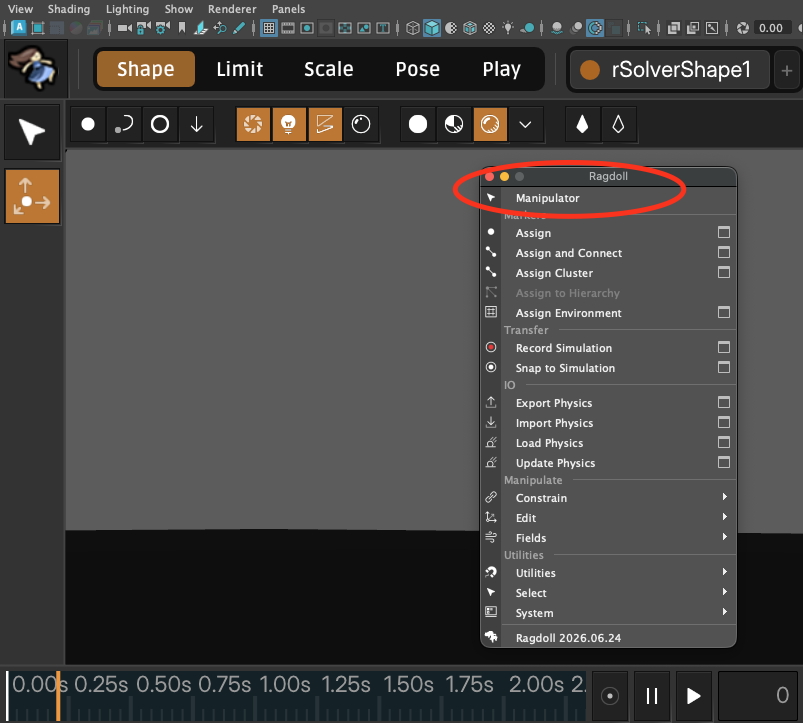
When I click Ragdoll, and then on the Manipulator button the Live Mode appears instead of the old Manipulator options.
I remeber with the Manipulator I could check to record Translates and Rotates and adjust other settings instead. Did that Option move to somewhere else?
Is it on purpose that the Live Mode appears?
Which sadly does not work on my end either and causes Maya crashes.
So I try not to use the LiveMode in general because I like controlling the animation as manually as possible.
Thanks for the help in advance!
Kind regards,
Nina
Hi @Nina_Fischer,
In your screenshot is the UI for Ragdoll 2026+ which changed from this back in 2024.
Functionality from the previous UI remains in the new UI, what is it that you are missing?
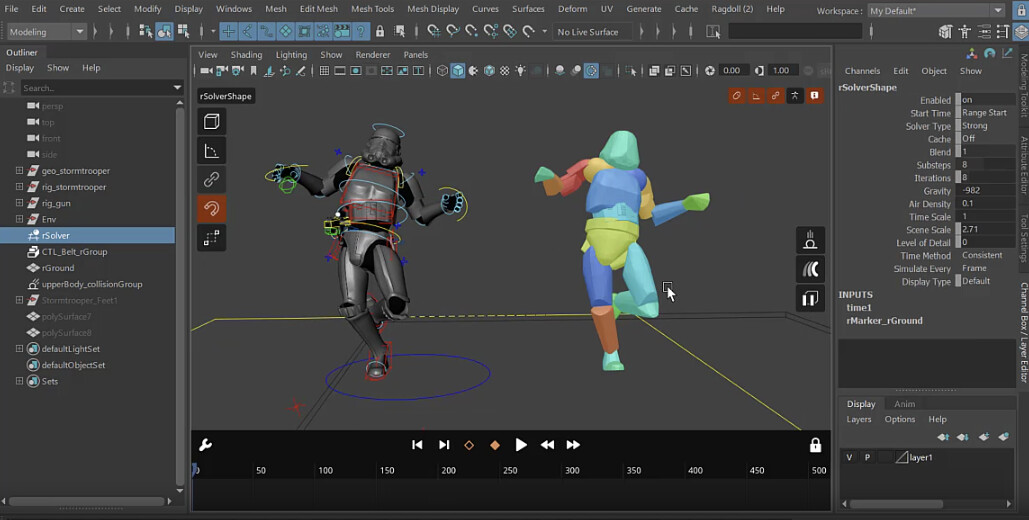
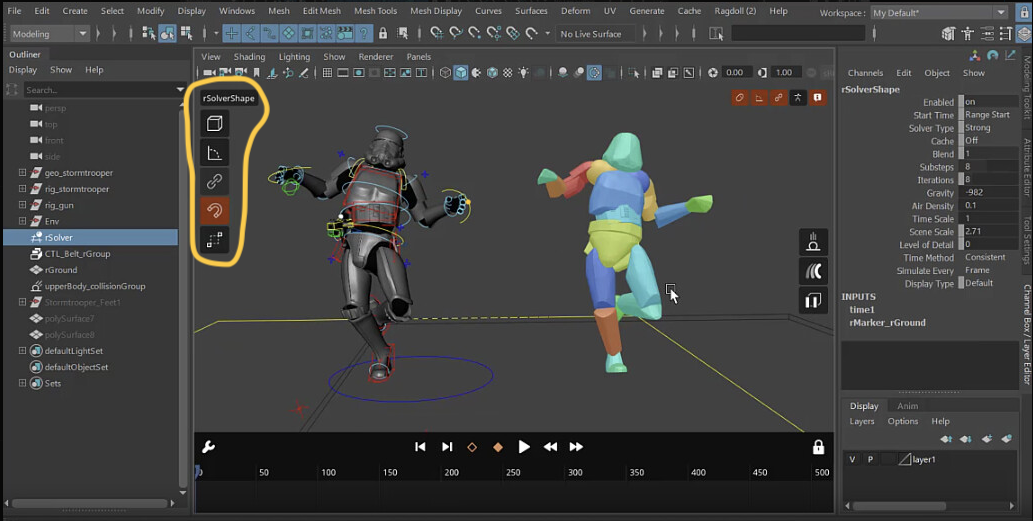
The “modes” at the top used to be on the left-hand size as icons.
- Shape Mode
- Limit Mode
- (Constraint Mode)
- Pose Mode
- Scene Scale Mode
The new “Play Mode” is what Ragdoll used to be in when the Manipulator was hidden and is now shown as an actual mode you can switch to.
If you mean selecting Markers in the Manipulator, to then tweak attributes in the Channel Box or Attribute Editor, this is still the case today. Which attributes specifically are you looking for?
That’s a problem, are you able to send me a scene which crashes for you? If not, are you able to reproduce it in a new scene with e.g. just a polyCube? If you can provide some steps we can take to make it crash, that would help a lot in patching this up.
I also noticed the size of the Maya UI and Ragdoll UI are very different, with the viewport toolbar text of Maya roughly 3x smaller than Ragdoll’s text. Do you have an special settings for scale or is this what you were presented with when first installing Ragdoll and opening the Manipulator?
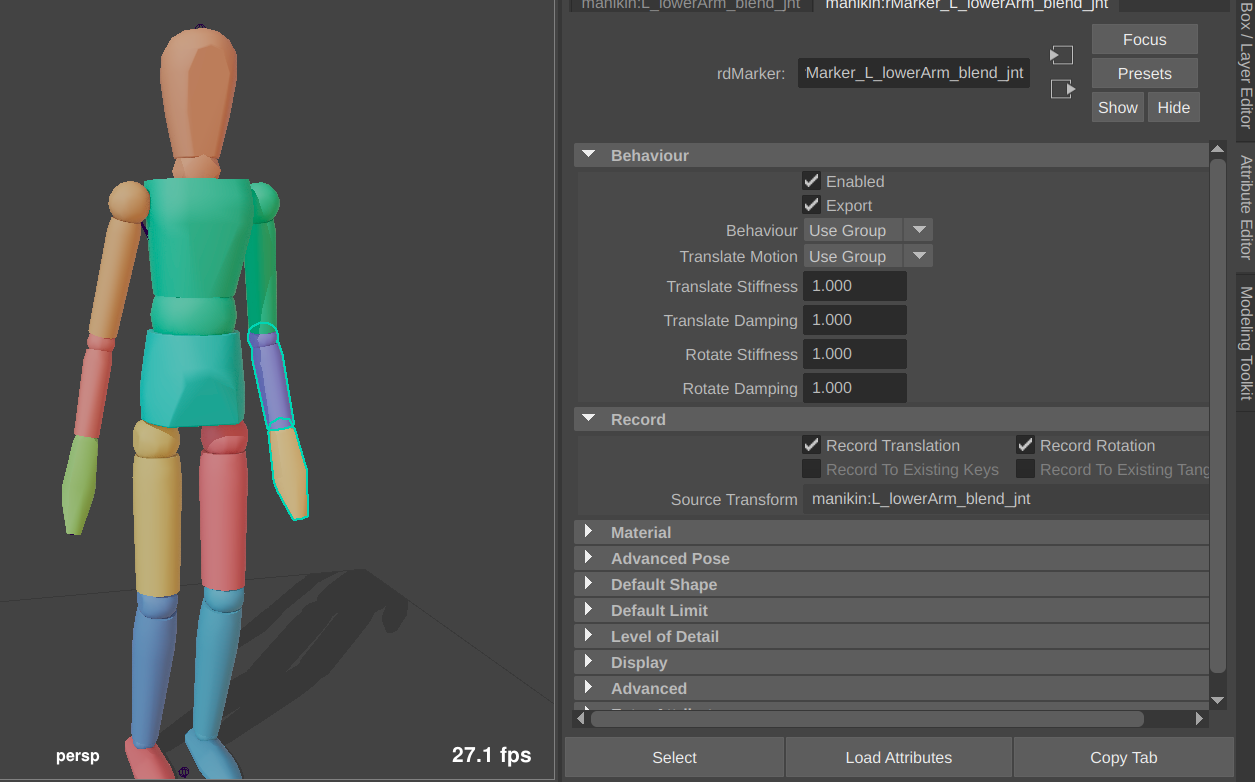
Back then when selecting a rig control and recording the anim from the markers to them for example only rotations was recorded.
And in case that happens there was the option to activate T and R in that Manipulator mode. I just wanted to find those options in case I need it. Like for recording transletes or both for example for a dinosaur tail and only recording the rotates  I don’t find the icons that marked yellow.
I made a recording of that other scenario what happens when I enter the Manipulator mode.
Maya did not crash but seems like none of these buttons seem to work.
I click something and then another icon is slected or freezign slightly. I am not sure if it cause I am new to Ragdoll 2026 or if this does not work as intended on my end.
Just purchesed a renew license. I try to share/ upload the video I made as well
Is there a way to upload videos or sending the recording via mail?
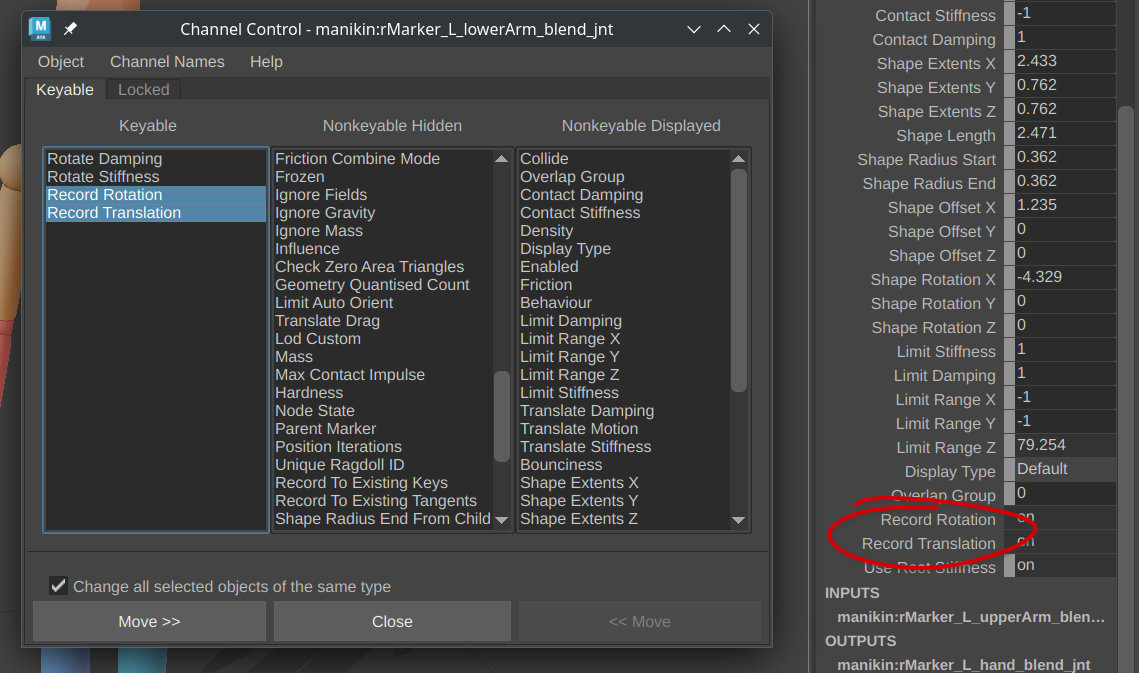
Aha, yes those were shortcuts for regular Maya attributes on the Markers themselves, which you can find here.
To mass-edit, you can multi-select many (or all) Markers and add them to the Channel Box.
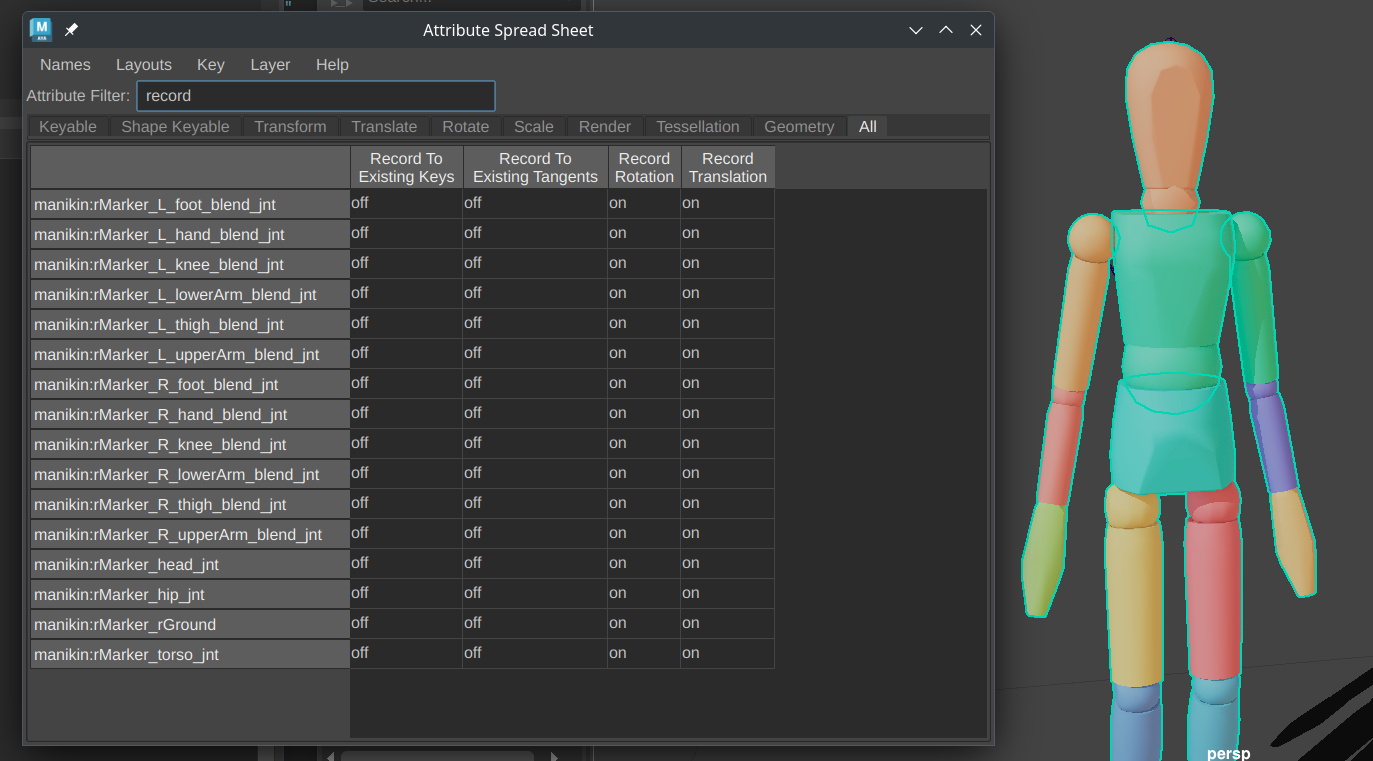
Or via the “Attribute Spread Sheet”, once you select all Markers via Ragdoll → Select → Markers.
But it’s true these would be useful to keep in the Manipulator UI, so we’ll add these back in. Thanks for reporting this.
Yes, if you can record your screen with this happening, that would help a lot. You can drag-and-drop videos into here, of less than 10 mb in size. It only needs to be a few seconds to show the issue.
And/or if you can provide a series of steps that we can follow to reproduce it on our end.
Thank you! That’s exactly what I searched. Besides that “mode” I mentioned Ragdoll seems to work now. I try to attach the video below.
Video Overview when entering Manipulator. Ui not responsive. When clicking an Icon it selects another Icon. Nothing happens when selecting/ clicking the icons.
I use a M2 Mac, with 96 RAM
But as I mentioned: I never used this mode! So maybe I did somethign wrong and I need to press play first, I was just assuming that those Icons are “clickable”. I had no time in digging into that mode yet and was mainly searching for the recordign “translate/ rotate” option
Aha, yes thanks for this. This clarifies that the issue is the size of the UI. Buttons appear larger than the mouse is aware of, that’s why when you hover near the top-left corner, an icon below the cursor highlights.
It looks to be an issue specific to Mac, investigating and will get back to you next week.
Hi @Nina_Fischer ,
About the DPI issue from your video recroding, we need a bit more info from you. 
Can you please run this Python snippet in your Maya ScriptEditor, and share its output with us?
import ragdoll
from maya import cmds, OpenMayaUI as omui
from ragdoll import ui
screen = ui.MayaWindow().windowHandle().screen()
print(ragdoll)
print("logicalDotsPerInch: %s" % screen.logicalDotsPerInch())
print("physicalDotsPerInch: %s" % screen.physicalDotsPerInch())
print("dpiScale: %s" % omui.MQtUtil.dpiScale(1.0))
print("real dpi: %s" % cmds.optionVar(q="ragdollDpiScale"))
print("ui scale: %s" % cmds.optionVar(q="ragdollResolutionScaleFactor"))
Also, do you have multiple monitor connected to your mac? Do they have the same resolution?
Thanks,
David
Interesting. Yes, I do use multiple screens. On my main laptop screens the mode and the Icons appear smaller and there is no problem clicking through the Menu.
So on my main menu it works. On my other screen which is bigger the Icons scale up and are not clickable.
1 Like
import ragdoll
from maya import cmds, OpenMayaUI as omui
from ragdoll import ui
screen = ui.MayaWindow().windowHandle().screen()
print(ragdoll)
print(“logicalDotsPerInch: %s” % screen.logicalDotsPerInch())
print(“physicalDotsPerInch: %s” % screen.physicalDotsPerInch())
print(“dpiScale: %s” % omui.MQtUtil.dpiScale(1.0))
print(“real dpi: %s” % cmds.optionVar(q=“ragdollDpiScale”))
print(“ui scale: %s” % cmds.optionVar(q=“ragdollResolutionScaleFactor”))
<module ‘ragdoll’ from ‘/Users/Shared/Autodesk/modules/maya/Ragdoll-2026_06_24/scripts/ragdoll/init.py’>
logicalDotsPerInch: 72.0
physicalDotsPerInch: 94.50000141924761
dpiScale: 1.0
real dpi: 2.0
ui scale: 1.0
1 Like
An update on this, we’ve got a fix in place and a new release is on the way.