I’m running Ragdoll 2026.09.10 on an M4 Mac Mini under MacOS 27 and Maya 2027.2. Choosing the “Manipulator” Ragdoll menu does show some UI elements- but not those from your video: Manipulator - Learn Ragdoll
Thanks for reporting this. The video still contains an older UI and we are still actively working on the new UI. Once things stabilise these videos need an update as well.
They should remain functionally the same, so let us know if you miss anything or struggle to find something.
it’s not at all clear how you can use the minimal UI that is presented to resize anything. I would like to attach a screen grab so that you can see what I’m seeing…
Okay I’ve found the controls. But I cannot independently change the limiting angles (on Maya on MacOS27). The ctrl key does not permit me to adjust the two angles independently.
also markers all in the same collision group are still passing through one another. see:
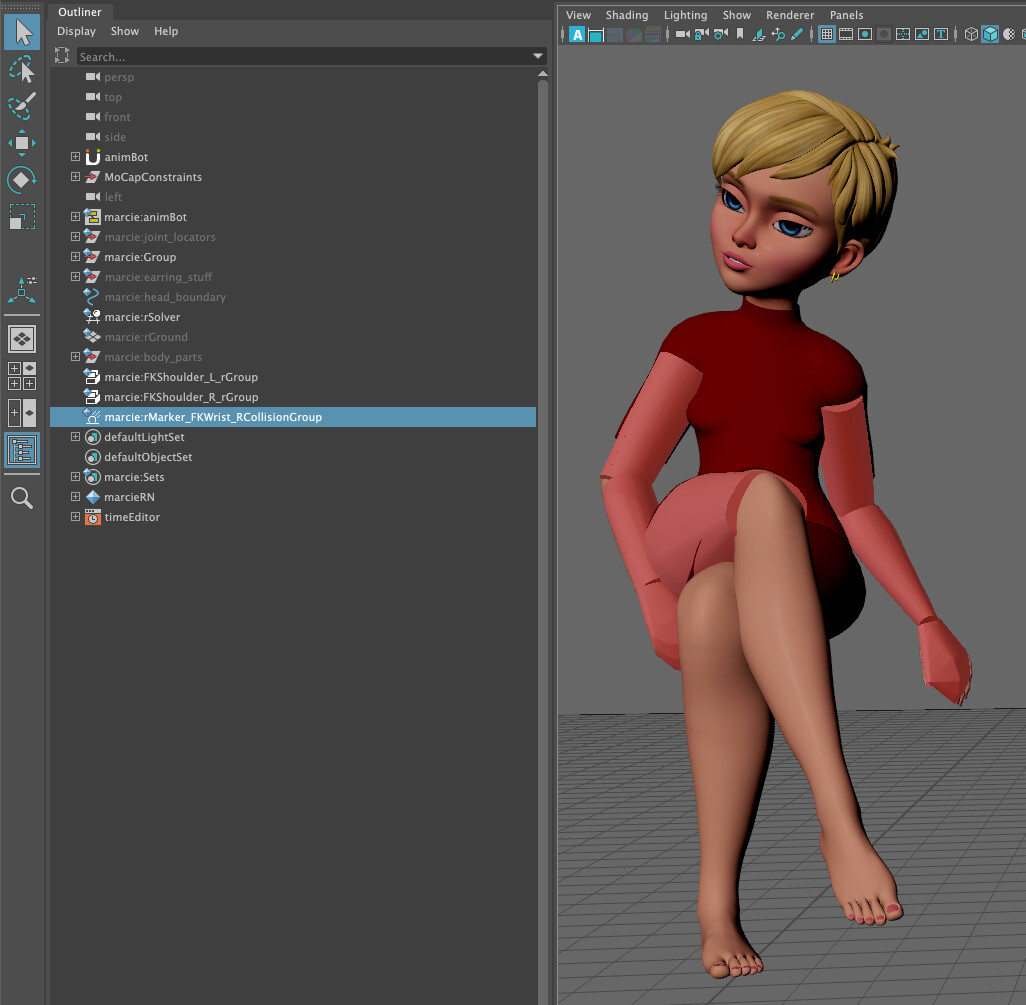
(drag-n-drop or paste to upload an image here)
Hi @danwwright
We have confirmed this is indeed broken in latest version for macOS. 
Will make a fix release soon!
But about the collision group though:
If you mean this part of intersection:
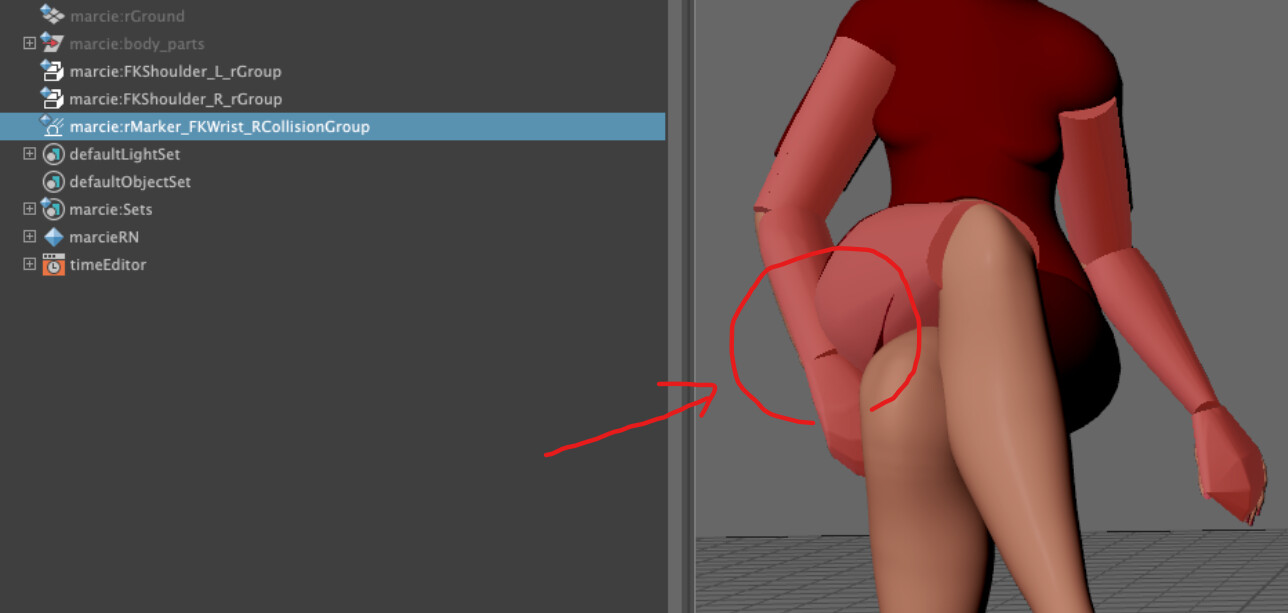
Then that is expected. Please have a look at this release note:
Okay- I misunderstood what “collision groups” meant. Oddly it means markers that don’t collide but instead are permitted to pass through one another? So I deleted this collision group and made new marker groups.
I have three different marker groups and I want them to not interpenerate one another. But they do:
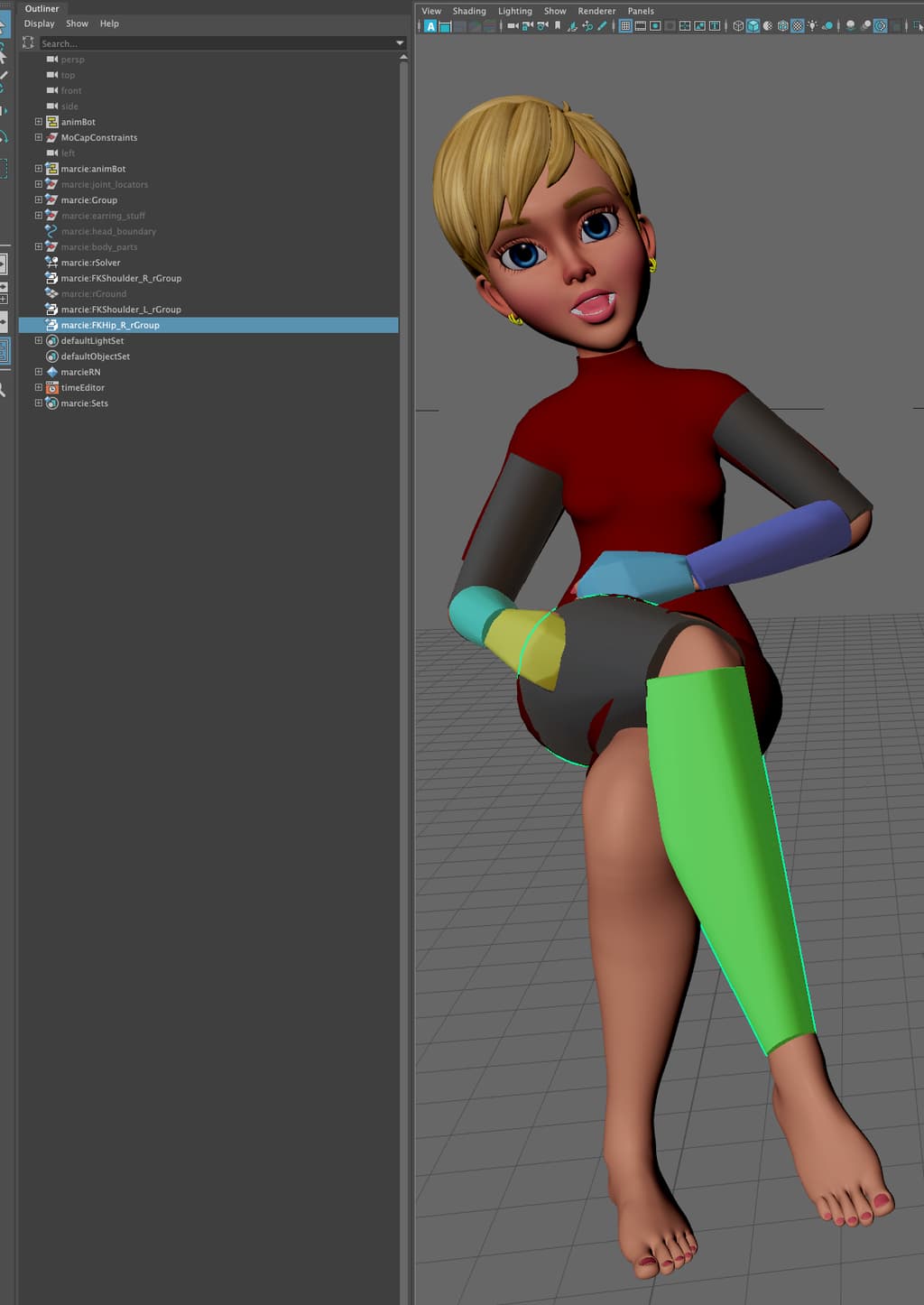
Right hand passes into the right hip. The markers were attached to some FK controls (not connected to the underlying joints). Is this still the expected behavior? How to I tell ragdoll to not permit this?
Try dragging-and-dropping your images into your post to upload. Makes it easier for us to follow along without following links.
Groups have a default Self Collide = Off, try setting this to On. Markers in different groups would collide per default, you can control this either with a Collision Group node or the Overlap Group attribute on each Marker. Same number means same group = ignoring collisions.
Hey @danwwright , thanks for getting back.
All markers by default collides to each other, unless some of them are grouped. And there are two types of groups in Ragdoll:
- The regular marker group
- The collision group
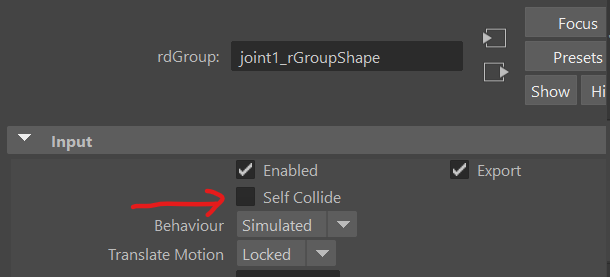
The marker group helps you manage common marker attributes in batch, which includes the collision behaviour. And by default, the “Self Collide” is off.
Collision group on the other hand, is like a mean to “reduce” unwanted collision. For example, all markers are colliding each other per default, you can think of it as each marker has its own collision group by itself, and so assigning a collision group to a few markers makes them to behave as one collider.
And for your hand and leg, if they already intersecting each other at start frame, you might want to lower the stiffness for them to follow simulation output a bit more.
If that’s not the case, attach a screen recording would be helpful. 
Okay- I had three groups: the two arms and the right leg. I then grouped these three groups together via the menu Ragdoll->Edit->Group. And then for that group I turned on self collide via the Maya channel box like so:
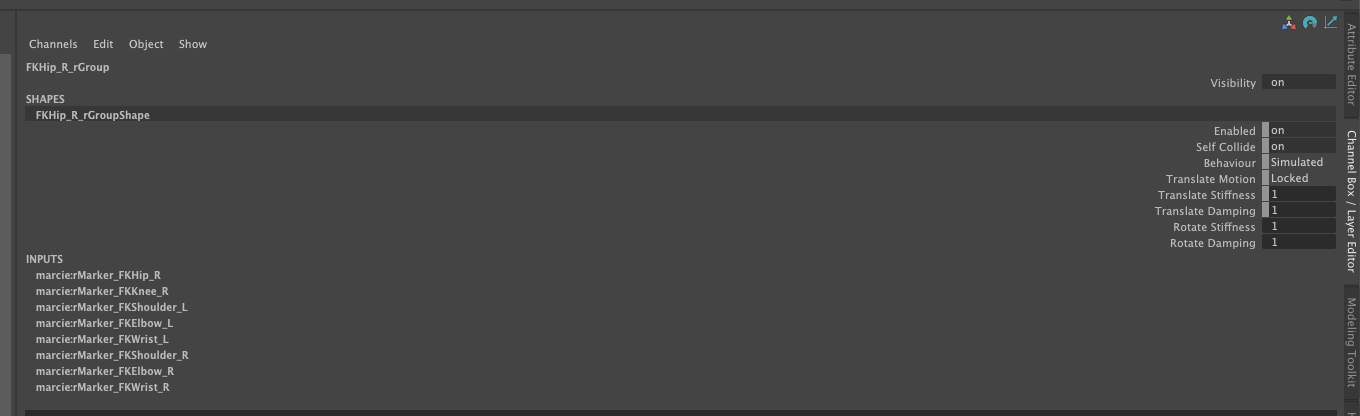
Running the animation is shown below. The hand still does sometimes slightly enter the thigh- is this expected?
Yes, that’s soft contact by default. Please have a look at this release note 
If you really want no intersection, set both markers’ Contact Stiffness to -1, turn them into hard contact.
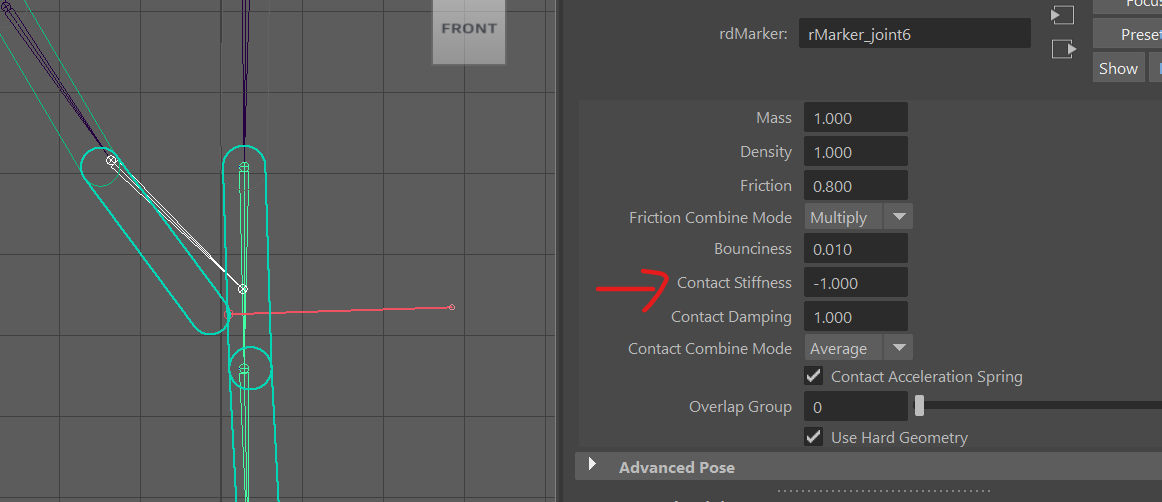
Contact Stiffness does not appear in the channel box attributes for the group. Is there somewhere that Contact Stiffness can be edited so that it applies to all the markers in the group?
There is the per-Marker attribute, and then the solver has an attribute of the same name that applies to all Markers. The group does not have this attribute.
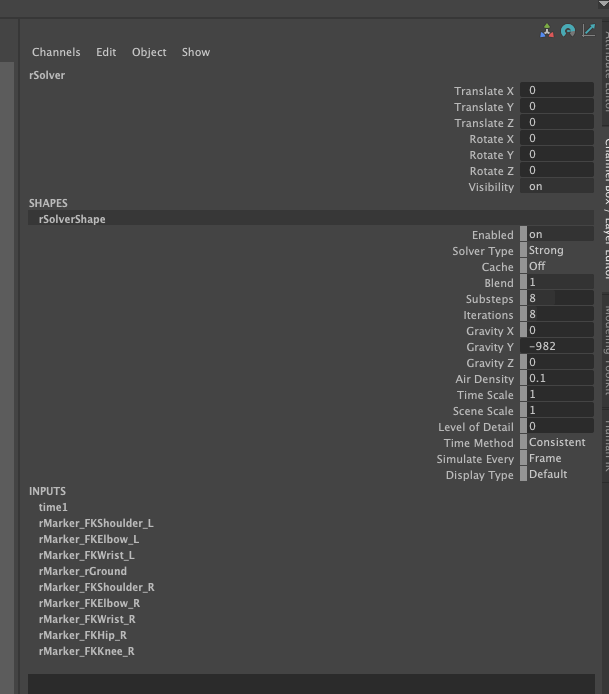
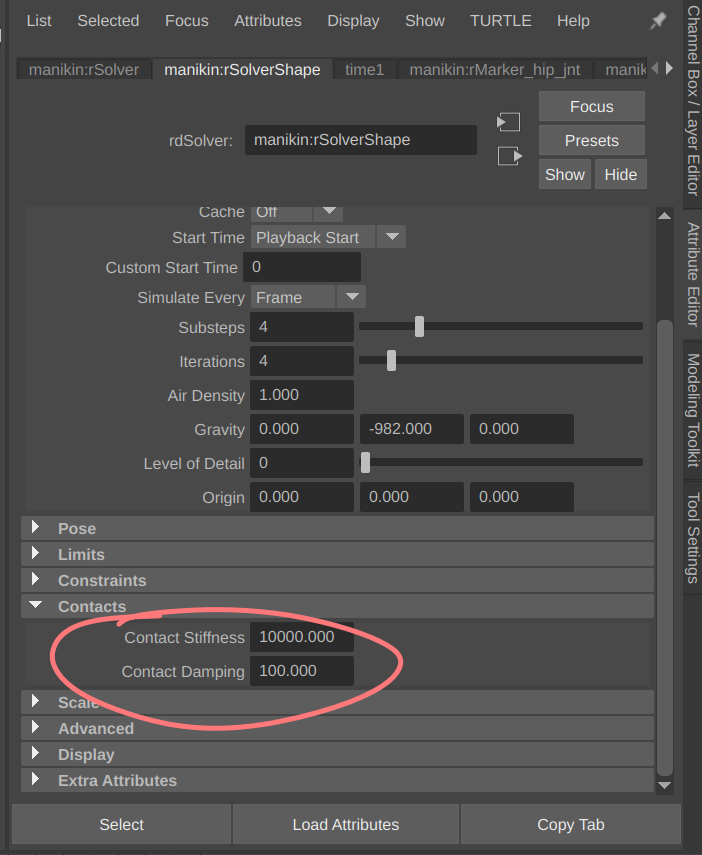
Ahh- got ot. Thanks!